
Accidentally deleting important documents, photos, or videos can happen to anyone, and it can be stressful. We will explain how to recover deleted files on different devices in 2026. You’ll learn step-by-step methods for Windows, Mac, Android, USB drives, SD cards, and other storage devices. File recovery has become increasingly important as we store more valuable data digitally. Whether it’s work-related documents, personal memories, or crucial system files, knowing it can save you time and frustration.
Can Deleted Files Be Recovered?
When you delete a file, it is not immediately removed from the storage device. Instead, the system marks the space as available for new data, while the file’s contents remain intact until overwritten. This is why how to recover deleted files is possible if action is taken quickly.
Temporary vs permanent deletion
- Temporary deletion: The file is moved to a holding area like the Recycle Bin on Windows or Trash on Mac. Files can be restored easily from there.
- Permanent deletion: This occurs when the Recycle Bin or Trash is emptied, or files are deleted directly without using the bin. Once deleted permanently, the space is flagged as free, making recovery more challenging.
What affects recoverability
The chances of how to recover deleted files depend on how much time has passed since deletion, whether the storage device has been used, and whether the deleted files have been overwritten by new data. Acting quickly improves recovery success.
Recovering Deleted Files from Windows
Windows users can recover recently deleted files by checking the Recycle Bin:
- Open the Recycle Bin from the desktop.
- Search for the file you want to restore.
- Right-click and select Restore, and the file will return to its original location.
Using Backup & Restore
If you had enabled Windows Backup, you can restore deleted files:
- Go to Settings > Update & Security > Backup.
- Choose the backup that contains the deleted files.
- Follow the prompts to restore the files to their original location.
Using File History
File History allows Windows to save copies of files:
- Navigate to the folder containing the deleted file.
- Right-click and select Restore previous versions.
- Pick the version you want and restore it.
Using third-party software
For how to recover deleted files permanently deleted files, third-party software like Recuva, EaseUS Data Recovery, or Disk Drill can scan your drive for recoverable files. These tools search for remnants and allow restoration if the space hasn’t been overwritten.
Recovering Deleted Files from Mac
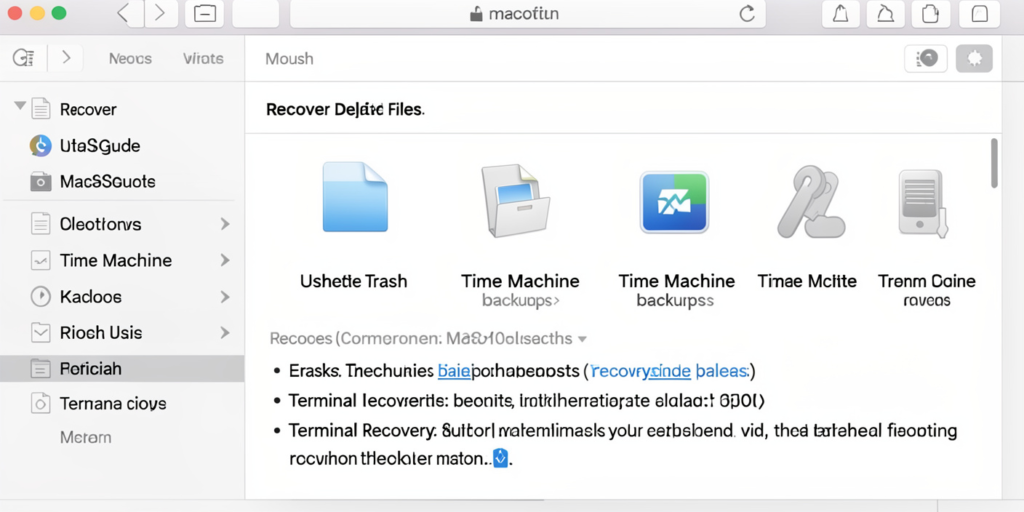
On a Mac, deleted files go to the Trash:
- Open Trash from the Dock.
- Locate the file you want to recover.
- Right-click and select Put Back to return the file to its original location.
Using Time Machine
Time Machine automatically backs up files if enabled:
- Open Time Machine from the menu bar.
- Go to the date before deletion.
- Select the file and click Restore.
Using Mac data recovery software
If files are permanently deleted, software like Disk Drill or PhotoRec can scan the Mac storage for recoverable data.
Recovering Deleted Files from Android Devices
- Using Google Drive backup: If your device was set to back up files to Google Drive, deleted files may be available in the Trash for a limited time. You can restore them directly from the Drive app.
- Using Android data recovery apps: There are how to recover deleted files apps designed to scan your device for deleted files, including photos, videos, and documents. These apps can recover files if they haven’t been overwritten.
- Tips for rooting-free recovery: Some recovery apps require root access, which can void your warranty and pose risks. Always choose methods that don’t require rooting when possible.
Recovering Deleted Files from USB, SD Cards, and External Drives
- Common causes of data loss: External drives and memory cards can lose files due to accidental deletion, formatting, corruption, or unsafe removal. In many cases, the data remains intact and can be recovered.
- Best recovery software for drives: Tools like Recuva, Disk Drill, and PhotoRec can scan external media for deleted files and restore them if the data hasn’t been overwritten.
- How to avoid overwriting data: Avoid saving new files or installing software on the affected drive, as this reduces the chance of how to recover deleted files. Acting quickly is crucial for success.
Top Data Recovery Software in 2026
Free options
- Recuva: User-friendly recovery tool for Windows.
- PhotoRec: Powerful open-source tool for multiple platforms.
- EaseUS Data Recovery Wizard Free: Recovers a limited amount of data for free.
Paid options
- Disk Drill: Advanced scanning with higher recovery limits.
- Professional suites like Stellar Data Recovery for complex recovery needs.
How to recover deleted files Pros and cons
| Software | Pros | Cons |
| Recuva | Free, easy to use | Limited deep scan |
| PhotoRec | Powerful, cross-platform | Not beginner-friendly |
| EaseUS | Simple interface | Free version limits data recovery |
| Disk Drill | High success rate | Full features require payment |
Common Mistakes to Avoid During File Recovery
- Overwriting lost files: Don’t save anything new to the drive after deletion.
- Using unsafe software: Avoid unverified tools that can damage files or the system.
- Ignoring backups: Always check cloud or system backups before attempting recovery.
Tips to Prevent Data Loss in the Future
- Regular backups: Use Windows File History, Time Machine, or cloud backup solutions.
- Cloud storage: Services like Google Drive, OneDrive, iCloud, or Dropbox often keep deleted files temporarily.
- Antivirus and safe practices: Keep devices protected from malware, and avoid unsafe software or files.
Wrapping up
Knowing how to recover deleted files is a valuable skill in 2026. Whether you are using Windows, Mac, Android, or external storage, quick action and the right tools can save your important data. Always remember to maintain regular backups, act fast after deletion, and choose trusted recovery methods. Preventive measures today can save hours of stress tomorrow.