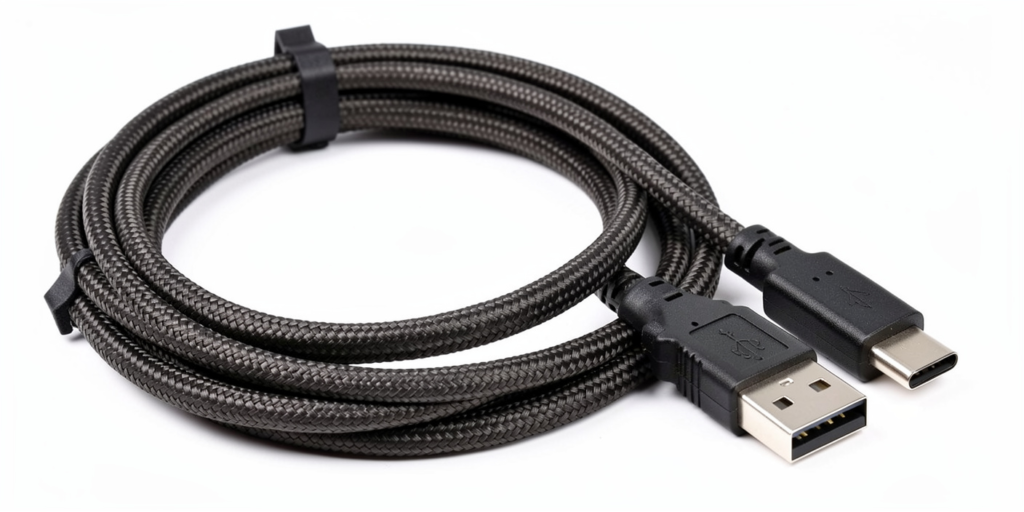

Modern computers, laptops, and accessories depend heavily on fast data transfer. Whether you’re moving large files, charging devices, or connecting external storage, USB technology plays a major role. One of the most common modern standards is USB 3.2. If you’re confused about what it means, how fast it is, and why it matters, this beginner’s guide explains everything in simple language.
What Is USB 3.2?
It is a Universal Serial Bus standard designed to deliver faster data transfer, better power delivery, and improved performance compared to older USB versions. It is used for connecting devices such as external hard drives, SSDs, keyboards, mice, cameras, smartphones, and gaming accessories. It supports multiple data lanes and works mainly with USB-C connectors, although it can also appear on USB-A ports.
Evolution of USB Technology
- USB 1.1 to USB 2.0: USB began with USB 1.1, which offered very slow speeds suitable only for keyboards and mice. USB 2.0 later improved performance to handle flash drives, printers, and basic storage devices.
- USB 3.0 and USB 3.1: USB 3.0 introduced a major speed boost and better power efficiency. It later evolved into USB 3.1, which doubled transfer speeds and improved reliability.
- How USB 3.2 Improved USB Standards: It builds on earlier versions by using multiple data lanes over USB-C connections. This means it can send and receive data at the same time with higher throughput.
USB3.2 Generations Explained
- USB3.2 Gen 1 Overview: USB3.2 Gen 1 operates at up to 5 Gbps. It is essentially the same speed as older USB 3.0 but renamed under the it standard.
- USB3.2 Gen 2 Overview: USB3.2 Gen 2 supports speeds up to 10 Gbps. It is twice as fast as Gen 1 and is commonly used for external SSDs, high-resolution video devices, and fast data backups.
- USB3.2 Gen 2×2 Overview: USB3.2 Gen 2×2 uses two lanes at once and reaches up to 20 Gbps. This version is mainly found on USB-C ports and is ideal for professional users who transfer very large files frequently.
USB 3.2 Speed and Performance
In real life, performance is slightly lower than the maximum. File type, storage speed, system hardware, and cable quality affect results. Still, it allows large files to transfer in seconds instead of minutes.
Maximum Transfer Speeds
It speeds depend on the generation:
- Gen 1: Up to 5 Gbps
- Gen 2: Up to 10 Gbps
- Gen 2×2: Up to 20 Gbps
These speeds are much faster than USB 2.0, which is limited to 480 Mbps.
Factors That Affect USB 3.2 Speed
Several things influence it performance:
- Storage device speed
- Cable quality
- Port generation
- System hardware
- File size and format
Using a slow drive on a fast port will limit performance.
USB 3.2 Port Types
- USB-A Ports: USB-A is the traditional rectangular connector. Some USB-A ports support Gen 1 or Gen 2. They are backward compatible and commonly found on desktops and laptops.
- USB-C Ports: USB-C is the modern, reversible connector. Most high-speed features, especially Gen 2×2, work best on USB-C. It also supports charging, display output, and fast data transfer.
- Which It Port Should You Use?: If your device supports it, USB-C is the best choice for it because it handles higher speeds and power delivery better. USB-A still works well for everyday devices and compatibility.
USB3.2 Cables and Compatibility
- Choosing the Right USB3.2 Cable: Not all cables support full speeds. A low-quality cable may reduce performance. To get maximum speed, the cable must match the generation of your port and device.
- Backward Compatibility Explained: It is backward compatible with older USB versions. That means you can connect USB 2.0 or USB 3.0 devices to a port. However, the speed will drop to the slowest device in the connection.
USB 3.2 vs Older USB Versions
- USB3.2 vs USB 3.1: It improves on USB 3.1 by supporting multi-lane operation and higher potential speeds. It also standardizes naming across generations.
- USB3.2 vs USB 3.0: USB 3.0 is slower and lacks the advanced features of USB3.2. USB3.2 offers better efficiency, faster transfers, and improved device handling.
- USB3.2 vs USB 2.0: USB 2.0 is very slow for modern needs. USB 3.2 is dramatically faster, supports better power delivery, and handles large files with ease.
Benefits of USB3.2
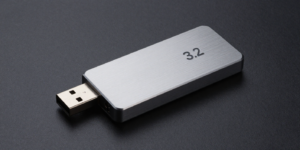
- Faster File Transfers: It allows users to copy movies, games, backups, and projects quickly without long waiting times.
- Better Power Delivery: It supports higher power output, making charging faster and more reliable for phones, tablets, and accessories.
- Improved Device Connectivity: With it, multiple devices can connect smoothly without performance drops, making it ideal for modern PCs and laptops.
How to Check If Your Device Supports USB 3.2
- Checking on Windows and Mac: On Windows, Device Manager and system settings show USB controller information. On Mac, system information displays connected USB devices and supported speeds.
- Reading Port Labels and Specs: Manufacturers often label ports as SS, 10, or with USB-C symbols. Checking your device specifications is the easiest way to confirm its support.
- Using System Information Tools: System tools show USB controller details, letting users verify which generation their device supports.
Final Thoughts
USB 3.2 is a powerful and modern USB standard that improves speed, charging, and device compatibility. Whether you are a gamer, creator, student, or everyday PC user, it helps your system perform better with less waiting and fewer connection problems. Understanding it makes it easier to choose the right ports, cables, and devices for your setup.
FAQs About USB 3.2
Is it backward compatible?
Yes, it works with older USB devices, but speeds match the slowest connected component.
Does it require USB-C?
No, it can work on USB-A and USB-C, but higher speeds like Gen 2×2 usually require USB-C.
Is it good for gaming?
Yes, it is excellent for gaming because it supports fast data transfer, stable connectivity, and high-performance accessories.